Zip export
Hand a set of applicants to an auditor, a hiring manager or your next HR system as one zip that mirrors your folders: a folder per location and position, one per applicant with their files, and a spreadsheet of everyone on top.
Where to find it#
- Gosling: select applicants and press Export; or use the folder's Export menu for Export {folder}; or Export everything from All applicants.
- Gooseplicant: Download zip in the inbox's selection bar, or Export → Download zip of this view for everything the current filters show.
Admins and recruiters can export, and only what they're allowed to see: everyone is limited to their locations. A selection must be visible to you in full, otherwise the export is refused rather than quietly missing people.
What goes in#
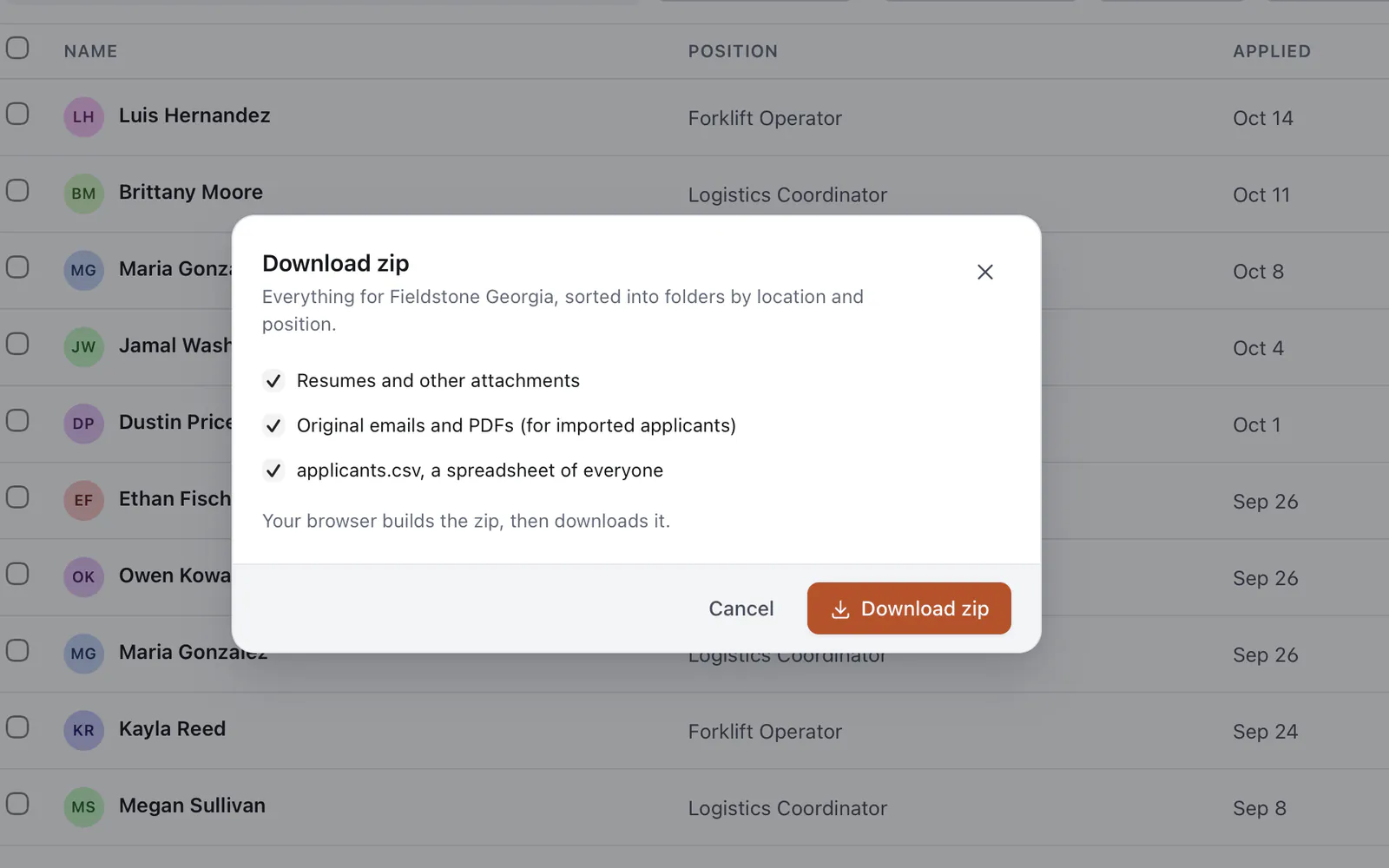
The dialog lets you choose:
- Resumes and other attachments the applicant uploaded (on by default).
- Original emails and PDFs of imported applicants, saved as
original.msg,original.emlororiginal.pdf(off by default; see sensitive answers). applicants.csv, a spreadsheet of everyone in the zip (on by default).
Every applicant folder always gets an application.txt.
Zip layout#
applicants-2026-10-14/
  applicants.csv
  Fieldstone Georgia/
    Forklift Operator/
      Doe, Jane — 2025-03-03/
        application.txt
        resume.pdf
        original.msg
      Okafor, Nadia — 2025-03-04/
        application.txt
        Nadia_Okafor_Resume.pdf
    No position/
      Roe, John — 2024-11-20/
        application.txt
  Fieldstone Ohio/
...- The top folder and the zip are named after the export date.
- Locations use their display names. Positions are grouped regardless of capitalization and use the most common spelling; applications without one go to No position.
- Applicant folders are Last, First — applied date. Someone who applied twice gets two folders.
- Names are made safe for Windows and macOS: characters such as
<>:"/\|?*, reserved names likeCON, trailing dots and spaces are replaced, segments are cut at 120 characters, and clashes get(2),(3)…
applicants.csv#
The same spreadsheet as the CSV export: Application ID, Submitted, First name, Last name, Email, Phone, City, State, Site, Position, Stage, Rating, Source, Talent pool, then one column per non-sensitive answer, in the order they first appear. Cells that a spreadsheet would treat as a formula (starting with =, +, - or @) are prefixed with a quote so they stay plain text.
application.txt#
The applicant's record as plain text: name, position and location, then Applied, email, phone, city, state, source and application id, then the answers in form order under === Section === headers as Label: value lines. It's the same shape website application emails use, so it reads well anywhere.
Sensitive answers are never exported#
Answers that match Settings → Sensitive fields (by default convicted* and work_auth*) are left out of application.txt and applicants.csv, whatever your role and even if you revealed them on screen. Original emails of imported applicants can't be filtered that way, so they are opt-in: they're left out unless you tick the option, ticking it needs a role that may reveal sensitive answers, the export's audit entry records that originals were included, and each original downloaded is also audited on its own.
How the zip is built#
- The server writes a manifest
One request returns the list of applicants, their non-sensitive answers, file links and the CSV, and logs the export in the audit trail first. If the audit entry can't be written, there is no export.
- Your browser fetches the files
Each file comes through the normal download endpoint, tagged with the export so it is audited once as part of the export instead of once per file. That tag is valid for an hour, for you, and only for the applications in that export.
- Your browser builds the zip
Text is compressed, PDFs, Office files and images are stored as they are. The server never zips anything, so exports work the same on Cloudflare Workers and Node.js.
Straight to disk, or in memory#
- Chrome, Edge and other Chromium browsers ask where to save first, then stream the zip straight to disk, so size doesn't matter.
- Other browsers (Safari, Firefox) build the zip in memory and download it at the end. Above about 1.5 GB the dialog warns you first, because some computers run out of memory; narrow the export or use Chrome or Edge for very large ones.
You can stop an export at any time. If some files can't be fetched, the zip still completes, the dialog lists what's missing, and _export-errors.txt inside the zip records it too.
Limits#
One export holds up to 10,000 applications. Exporting a folder or a filtered view with more than that includes the first 10,000 and tells you, so you can narrow the filters and export the rest separately.
Audit#
With the audit module on, each zip export is logged (export.created) with who, when, from which IP, how many applications, and the selection or the filters used. CSV exports are logged the same way. See Audit log.