Import old applications
Applications that arrived before Gooseplicant, as emails in a shared mailbox or as PDFs in a folder, can be brought in so they sit next to everything else, filed by location. The importer reads the files in your browser, shows you what it found, and uploads only what you confirm.
Nothing leaves your browser until you press Import. Parsing Outlook files and PDFs happens on your computer, not on the server, so even a large batch costs the server nothing until you confirm. Imports never email anyone.
Where to find it#
- Gosling: Import in the header, or Import old applications at the bottom of the locations sidebar.
- Gooseplicant: Import in the main navigation.
Admins and recruiters can import, into the locations they have access to. Viewers get a friendly note instead.
Supported files#
| File | Notes |
|---|---|
.msg | Outlook messages, as saved or dragged out of Outlook. |
.eml | Standard email files, as exported by most mail clients and servers. |
.pdf | Application emails printed or saved as PDF, one or several applications per file. |
Pick single files, many files or a whole folder (Choose a folder, or drag one in). Other file types in a folder are skipped and counted. The folder path travels with each file as a hint for sorting, so a folder per location works nicely.
What it reads best#
The importer is tuned for the application emails a careers website typically sends to HR, and copes with other shapes:
- Website application emails: a subject such as
Georgia - Jane Doe - Employment Application(orEmployment Application - Georgia - Jane Doe), an HTML body with a heading like New Application - Georgia, a heading per section and a label/value table under each. An attachedapplication-Jane-Doe.txtwith=== Section ===headers andLabel: valuelines is used as the most reliable source of answers when present. - The same emails as PDFs, including several in one PDF.
- Anything else: it falls back to the sender, subject, date, attachments and any
Label: valuelines, and sorting plus your review do the rest.
Attachments such as resumes are kept as the applicant's files. The source .msg, .eml or .pdf itself is stored with the record too, as evidence of what it was built from.
How applications are sorted by location#
For each application the importer looks for one of your locations by its name, its id and its aliases, as whole words and ignoring case. It checks, in order:
| Where it was found | Confidence shown |
|---|---|
| Subject line, or the heading at the top of the email | Sure |
| Body text | Likely |
| Folder path or file name | Guess |
| Nowhere | Pick one: you choose before importing |
- The most specific match wins. If the same place mentions two different locations, the confidence drops a level and the alternatives are listed in the reason.
- A company prefix shared by your locations is understood: with locations named Fieldstone Georgia and Fieldstone Ohio, an email that only says “Georgia” still matches, and the reverse works too. The prefix is worked out from your location names, never hard-coded.
- Choosing a location yourself shows Chosen.
Teach it your nicknames: location aliases#
Add the names people actually wrote, such as “GA”, “Rome plant” or an old site name, as aliases. Fewer imports then need a hand.
- Gosling: Admin → Locations.
- Gooseplicant: Settings → Sites, field Also known as.
If the files mention a place that isn't one of your locations, the review step says so (“Springfield appears in 1 application but isn't one of your locations”). Admins can create it right there; recruiters pick an existing location or ask an admin.
The review step#
Nothing has been uploaded yet. You see every application found, in a table with the applicant, position, date applied, a location dropdown with its confidence chip and reason, any warnings, and an include checkbox per row.
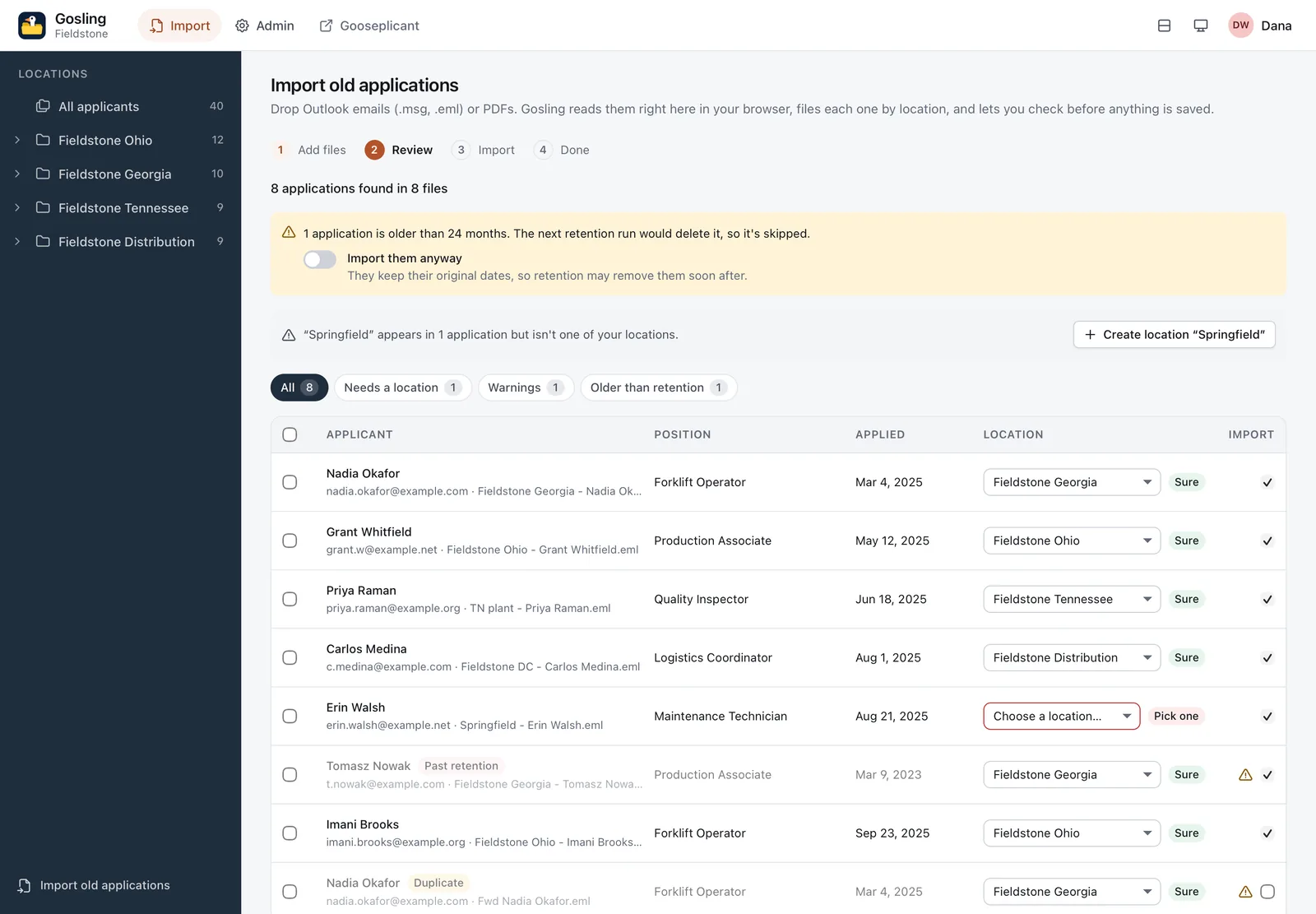
- Filters: All, Needs a location, Warnings and Older than retention.
- Bulk: select rows and Set location for selected.
- Dates: when no date can be found, pick the day it arrived. Import stays disabled until every included row has a location and a date.
- Duplicates in the batch: the same email found twice (say, saved in two folders) is marked Duplicate and the extra copy is skipped.
Dates and retention#
Imported records keep their original application date, and the retention clock counts from it, not from the day you imported. An application from three years ago is already due for deletion if retention is set to 24 months.
So by default the review step skips anything older than the retention period (Settings → Modules → retention, 24 months unless you changed it) and tells you how many. Switch on Import them anyway to bring them in regardless; expect the next hourly retention run to remove them unless retention is off or longer.
Import and done#
- Applications upload a few at a time (three in parallel) with progress per row. You can stop at any point; what finished stays imported.
- The summary counts Imported, Already there and Didn't make it, links to the folder they went into, offers a CSV of any problems and a retry for the ones that failed.
Re-importing is safe#
Each application gets a stable id derived from the source message (or the file's bytes). Importing the same files again, from the same or another computer, reports them as Already there and changes nothing. If an imported email address matches someone already in Gooseplicant, the application joins that person without overwriting their details.
What an imported record looks like#
- Source Imported (shown in the list and the applicant pane), the original date, the location you confirmed and the position from the email.
- It starts in the first pipeline stage, isn't linked to a job and isn't in the talent pool (an old email carries no consent).
- An application without an email address is allowed. Such a person is never merged with anyone and never emailed.
- Candidate email and HR notification modules don't react to imports, so nobody hears from you about an application they sent years ago.
Limits#
- Each attachment is limited by
MAX_FILE_BYTES(10 MiB by default); the source message itself may be up to three times that, and one application's upload up to four times plus 1 MiB. - Large Outlook files and PDFs take a moment to read in the browser; the progress bar keeps you company.
Audit#
With the audit module on, every imported application is logged (application.imported) with who imported it, when, from which IP and the kind of source file. See Audit log.