Folders that file themselves
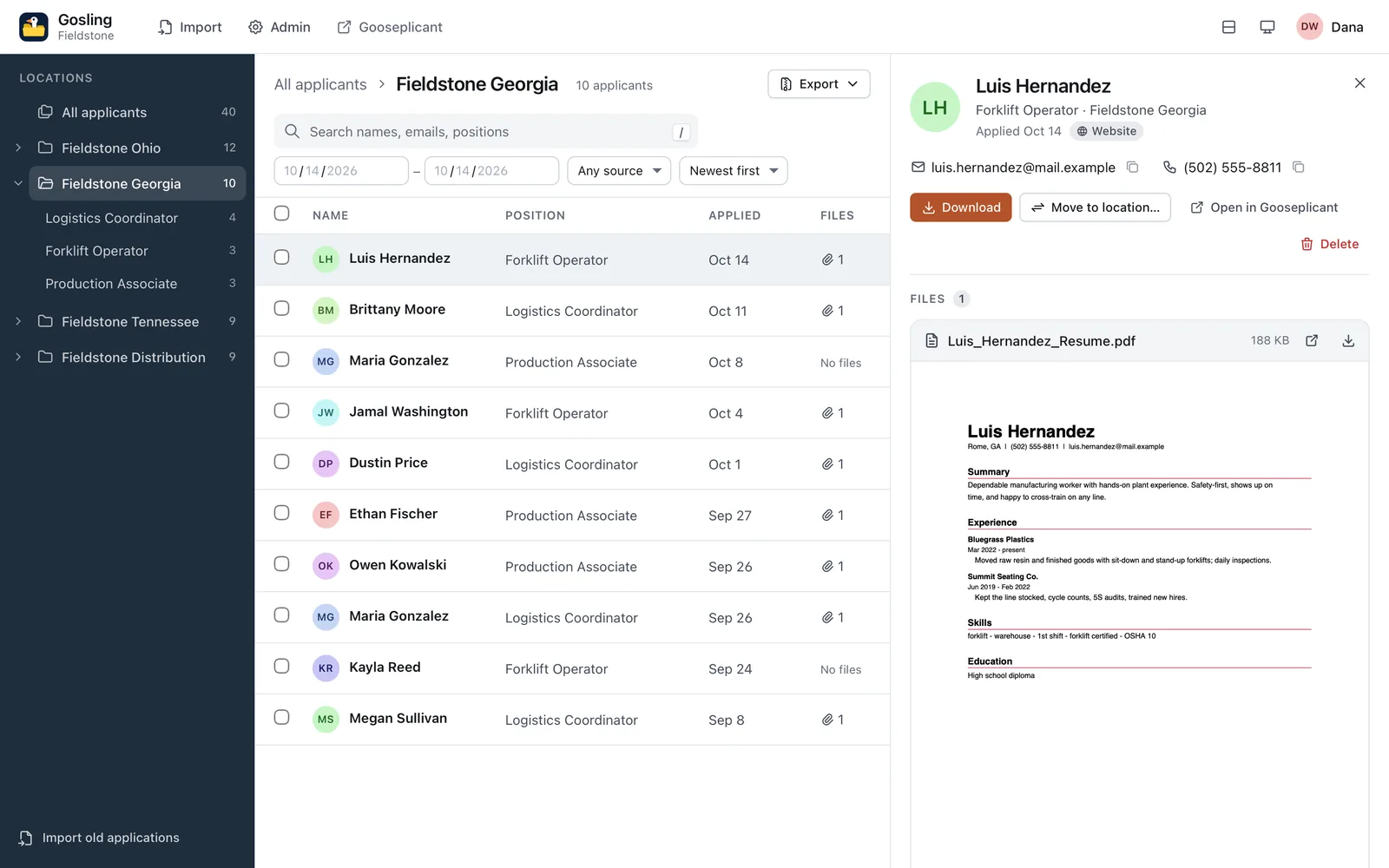
Locations, then positions within each, with counts. Applications from your website land in the right folder the moment they arrive. Search, date range and sort work inside any folder.
Gosling · the Lite edition of Gooseplicant
Gosling is a file cabinet that learned to search. Everyone who applied, sorted by location, then by position. Open a folder, find the person, read the resume. No pipelines, no stages, no ceremony.
What it does
Some teams don't want a pipeline. They want to know who applied where, open the resume, and hand a tidy folder to whoever asks. That's Gosling.
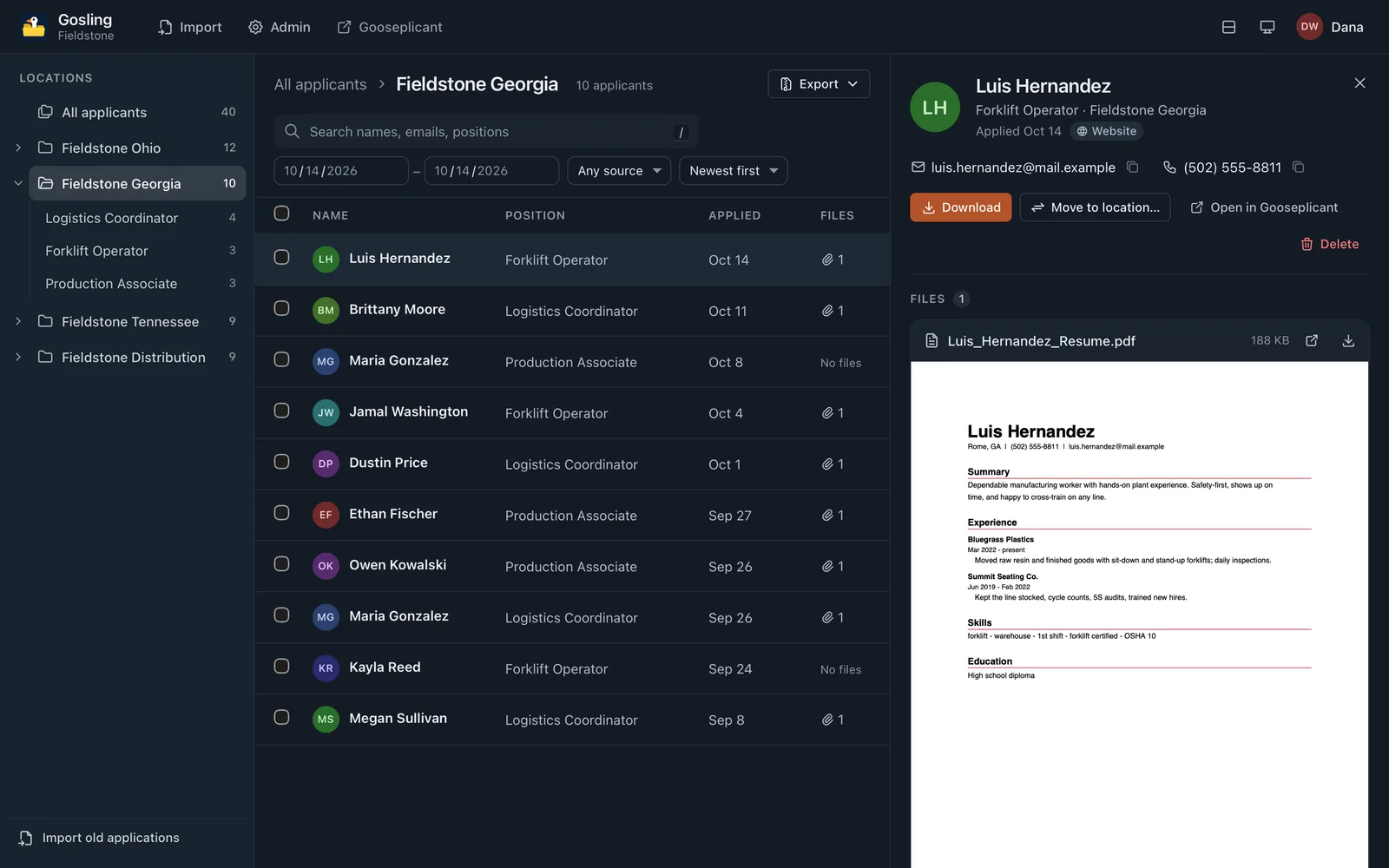
Locations, then positions within each, with counts. Applications from your website land in the right folder the moment they arrive. Search, date range and sort work inside any folder.
PDF resumes open right in the applicant pane, next to the application answers in the order the applicant saw the form. One click downloads the file.
Applied to Georgia but meant Ohio? Move one applicant or a whole selection to another location. Files and answers move along, and the move is logged.
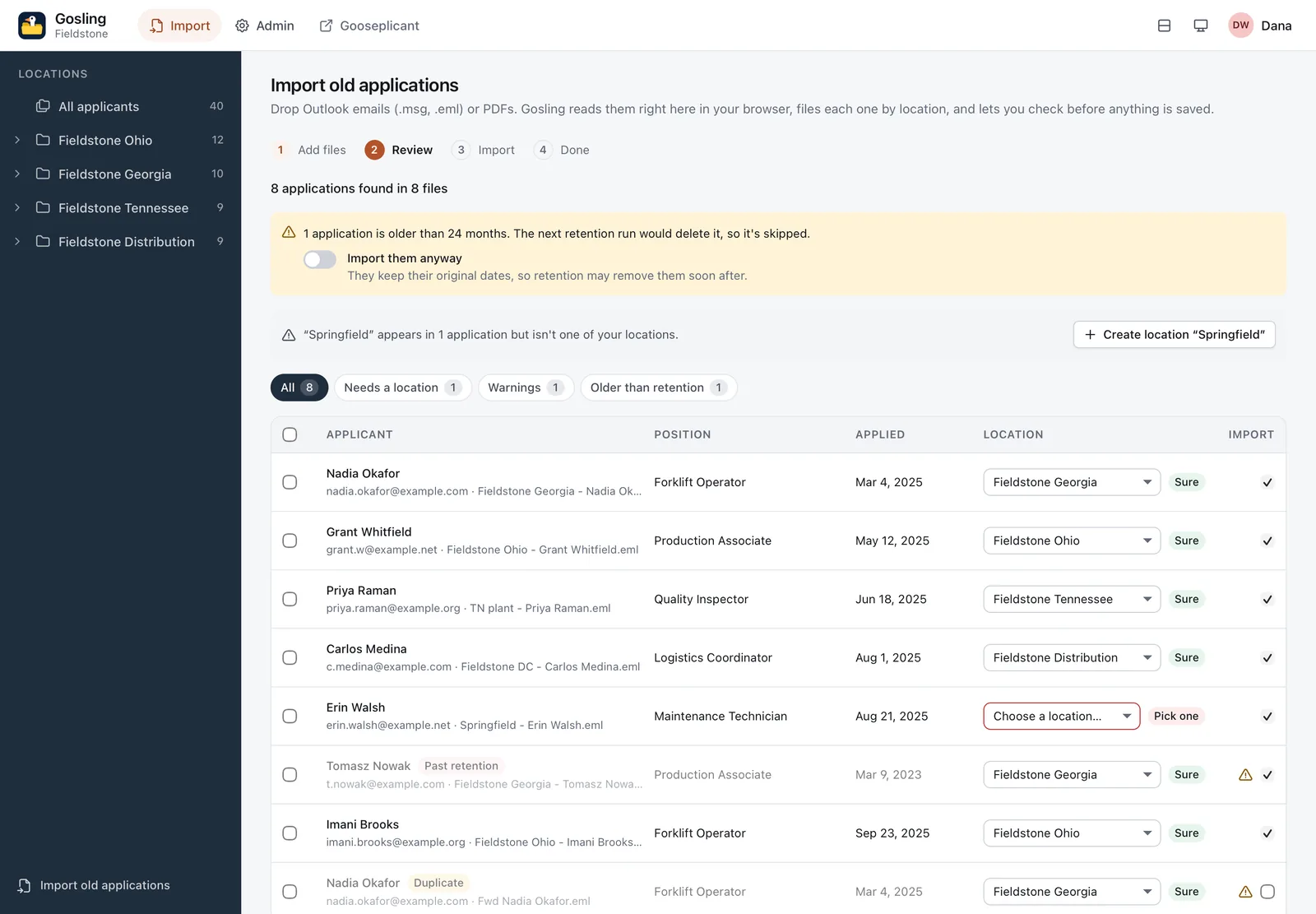
Drop in last year's application emails and PDFs. Gosling reads them in your browser, sorts them by location and lets you check before anything is saved.
Export a selection, a folder or everything: location and position folders, one folder per applicant with their files, and a spreadsheet of everyone on top.
Roles scoped per location, sensitive answers masked until revealed, an audit log of who looked at what, automatic retention and right-to-erasure deletes. Lite on features, not on care.
Import
Drop Outlook emails (.msg, .eml), PDFs or a whole folder. Everything is read in your browser; nothing is uploaded until you press Import.
Export
For an auditor, a new HR system or a hiring manager who wants “everyone for Georgia”: the zip mirrors your folders, with an applicants.csv on top. Sensitive answers stay out, and every export lands in the audit log.
applicants-2026-10-14/
  applicants.csv
  Fieldstone Georgia/
    Forklift Operator/
      Hernandez, Luis — 2026-10-14/
        application.txt
        Luis_Hernandez_Resume.pdf
      Okafor, Nadia — 2025-03-04/
        application.txt
        Nadia_Okafor_Resume.pdf
        original.eml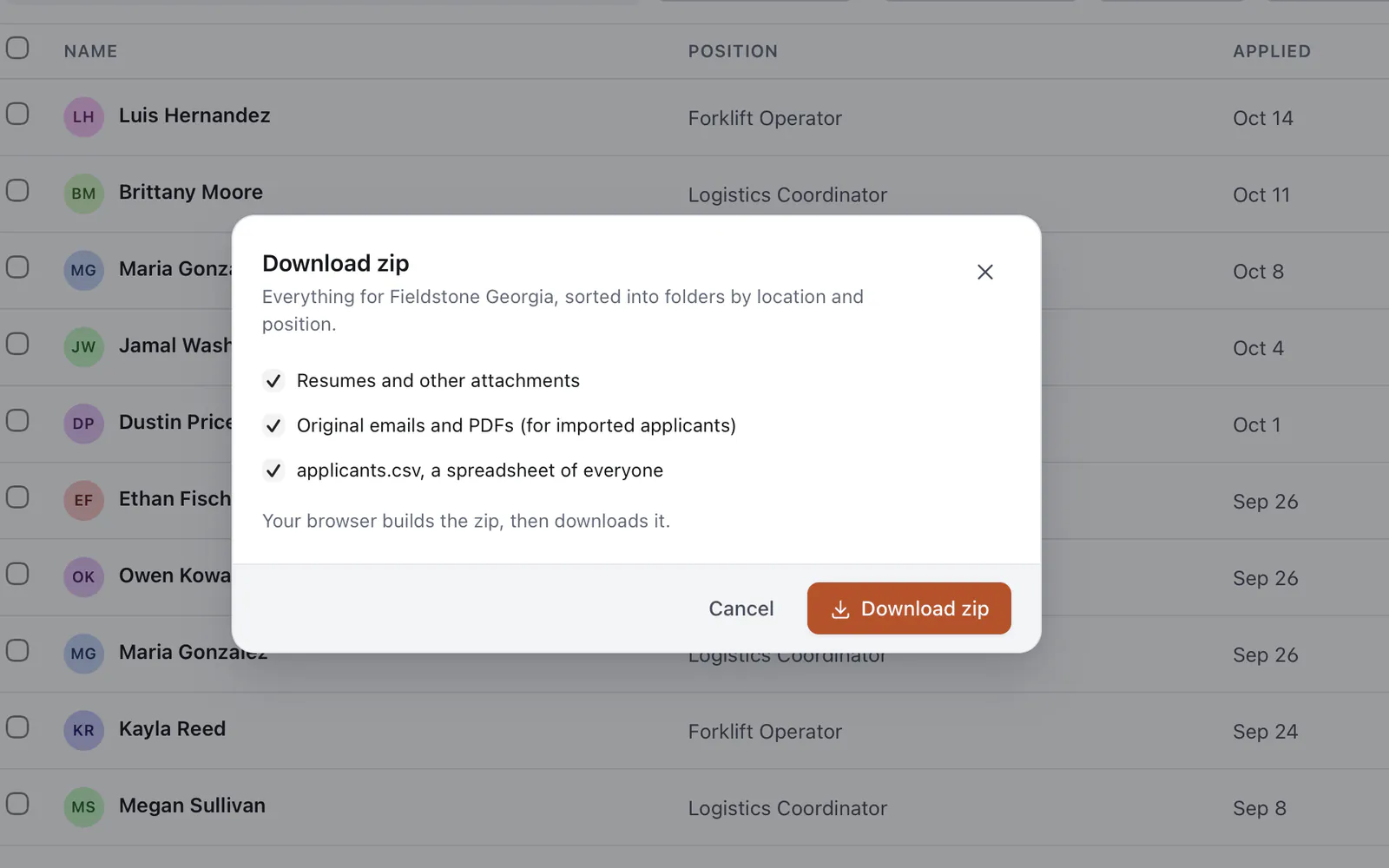
Two ways to run it
Gosling isn't a separate product to install. It's a second, simpler app on the same server, API and database, and the EDITION setting decides what else is switched on.
Every Gooseplicant install serves Gosling at /ats/lite/, next to the HR app at /ats/. Colleagues who just need to look someone up get the calm view; recruiters can jump to the full record with Open in Gooseplicant.
EDITION=fullOnly the file browser: /ats/ redirects to /ats/lite/, stages, jobs, notes and email are switched off, and only the audit and retention modules run. Your website form still posts applications in.
EDITION=liteWhen it's time to fly
When you want stages, ratings, notes, jobs, the talent pool or applicant email, change EDITION=lite to EDITION=full and restart or redeploy. Nothing is migrated, re-imported or re-uploaded: it's the same database, so every applicant, file and audit entry is already there. Applications you collected in Gosling simply start in the first pipeline stage.
Who can do what. Viewers browse, preview and download. Recruiters and admins can also reveal sensitive answers, move applicants, import and export. Admins manage locations (and their import aliases), users and retention, and can erase a person on request.
Not in Gosling: pipeline stages, ratings, notes, jobs, the talent pool and emails to applicants or HR. That's what Gooseplicant is for.
Gosling ships in the same kit as Gooseplicant. Install it with Docker, Node.js or Cloudflare, set EDITION=lite if that's all you need, and connect your form.